A computer repair job may take only an hour, but the paperwork behind it can prevent misunderstandings long after the customer leaves. A clear bill or invoice records what was done, what parts were used, how much is owed, and when payment is due. It also gives customers a useful record for budgeting, warranties, or reimbursement.
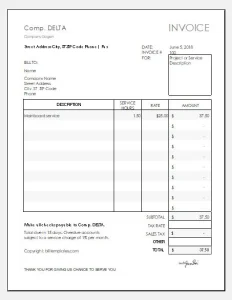 Whether you repair laptops from a home workshop or run a multi-technician service center, a well-designed computer repair invoice template can make your business look more professional and help keep jobs organized. Here’s what to include, how to handle common repair scenarios, and how to choose a template that fits your workflow.
Bill vs. invoice: What’s the difference?
The terms bill and invoice are often used interchangeably, and the document can contain the same information in either case. In general:
- An invoice is a request for payment, often sent before or when payment is due.
- A bill is commonly understood as a statement of what a customer owes, often presented at the time of purchase or service.
For computer repair businesses, the distinction is less important than making the document clear. Label it “Invoice,” “Repair Bill,” or “Receipt” according to its purpose—and make sure it accurately shows whether it is unpaid, partially paid, or paid in full.
Why use a computer repair invoice template?
A template gives you a consistent starting point for every service call. Instead of rebuilding a document for each customer, you can enter the job details into the same organized format.
A good template can help you:
- Explain charges clearly. Separate labor, parts, diagnostics, and other fees so the customer can see what they’re paying for.
- Reduce administrative work. Reusable fields make it quicker to prepare paperwork.
- Keep service records together. A unique invoice number can help connect a payment to a particular repair.
- Set expectations. Payment terms, warranty conditions, and notes can be written down instead of left to memory.
- Support bookkeeping. Consistent records can make it easier to track income and expenses. The IRS recommends keeping records that support income, deductions, and credits reported on a tax return; the records a business needs depend on its circumstances and applicable rules.[1]
A template is a practical tool, not a substitute for good bookkeeping or professional tax advice.
What to include in a computer repair bill or invoice
Your document should be detailed enough to explain the transaction without overwhelming the customer. Consider including the following sections.
1. Business information
List your business name, address, phone number, and email address. If applicable, include your website and business or tax registration details required in your location.
2. Customer information
Include the customer’s name and appropriate contact details. For business clients, add the organization’s name and billing contact. Avoid collecting unnecessary personal information; keep only what you need to complete the job and maintain your records.
3. Invoice and job identifiers
Give each invoice a unique number. You may also want to include:
- Invoice date
- Due date
- Work order or ticket number
- Repair completion date
- Technician’s name or ID
These identifiers are particularly useful when a customer has multiple devices or returns for follow-up work.
4. Device details
Identify the equipment being serviced. Useful details may include:
- Device type and manufacturer
- Model
- Serial number, if needed
- Customer-provided asset tag
- Accessories received, such as a power adapter
Record only information that is relevant to the repair and your business process. For example, a serial number can help distinguish devices, but it may not be necessary for every small job.
5. Work performed
Use plain language to describe the diagnosis and repair. For example:
Diagnosed intermittent startup issue; replaced failing SSD; installed operating-system updates; tested restart and storage health.
Avoid vague descriptions such as “computer repair” when you can provide a concise explanation. If the customer declined recommended work, you can note that as well.
6. Itemized charges
Show the individual charges, quantities, and totals. Common line items include:
- Diagnostic or assessment fee
- Labor, including hours or a flat-rate service
- Replacement parts
- Software or licensing charges
- Data transfer or recovery work
- Pickup, delivery, or onsite service
- Applicable tax
- Discounts or credits
For parts, identify the item clearly enough to explain the charge—for example, “1 TB NVMe SSD” rather than simply “part.” If you charge a minimum labor fee or a bench fee, explain it before work begins whenever possible and show it on the invoice.
7. Payment summary and terms
Show the subtotal, taxes, discounts, deposits, amount already paid, and remaining balance. State how the customer can pay and when payment is due. If you offer card, cash, bank transfer, or online payment options, identify them clearly.
Payment terms can vary by business and region. Make sure they are consistent with any estimate, service agreement, or consumer rules that apply to your location.
8. Warranty and service notes
If you offer a warranty on labor or installed parts, state the relevant terms or refer to a separate written warranty document. Be specific about what is covered, the duration, and any important exclusions. Avoid implying that a manufacturer’s warranty, data-recovery guarantee, or other coverage exists when it does not.
9. Customer acknowledgment
A signature or checkbox can document that the customer received the invoice or accepted the completed work. If you use an acknowledgment, describe what it means. A receipt confirmation is not necessarily the same as consent to terms or acceptance of every possible outcome.
A simple computer repair invoice example
Here’s a basic layout you can adapt:
[Business Name]
[Address] · [Phone] · [Email]INVOICE # CR-1048
Invoice date: [Date]
Due date: [Date]
Work order: [Ticket number]Bill to: [Customer name and contact information]
Device: [Manufacturer, model, and relevant identifier]
Description Qty. Rate Amount Diagnostic assessment 1 $[rate] $[amount] Labor: SSD replacement and system testing [hours] $[rate] $[amount] 1 TB NVMe SSD 1 $[price] $[amount] Subtotal: $[amount]
Tax: $[amount]
Deposit or payment received: $[amount]
Balance due: $[amount]Payment terms: [Terms and accepted payment methods]
Service notes: [Work performed, customer instructions, or follow-up]
Warranty information: [Summary or reference to written terms]
The example is a starting point, not a universal legal form. Adapt it to your local requirements and the kinds of services you provide.
Estimates, invoices, and receipts: Keep them distinct
A smooth repair process often uses more than one document:
- Estimate: An expected price before work is completed. It may be based on an initial inspection and could change if the diagnosis reveals additional issues.
- Invoice: A request for payment for work or products supplied.
- Receipt: Confirmation that payment has been received.
If you provide an estimate, explain whether it is fixed or approximate and how you’ll handle additional work. A useful practice is to contact the customer for approval before exceeding an agreed limit or starting work that changes the quoted scope. Keep the final invoice aligned with the approved work, and issue a receipt when payment is made.
Digital or paper templates?
A paper template can work well for a small number of in-person jobs, especially if you keep a copy for your records. Digital templates may be more convenient if you need to search past invoices, send documents by email, or work across multiple devices.
When choosing a format, consider:
- Ease of editing: Can you update rates, tax settings, and business details?
- Calculation accuracy: Are totals calculated automatically, and can you check how the calculations work?
- Record organization: Can invoices be sorted by date, customer, or job number?
- Customer access: Can you produce a clear PDF or printed copy?
- Data security: Where are customer and repair records stored, and who can access them?
- Portability: Can you export your records if you change tools?
A spreadsheet or word-processing file may be enough for a low-volume operation. Dedicated invoicing software may help once you need payment tracking, reminders, recurring services, or integration with accounting tools. Whatever you choose, maintain a reliable backup and protect records containing customer information.
Common mistakes to avoid
Even a professional-looking template can create problems if it is used carelessly. Watch for these common issues:
- Using vague line items. “Service fee” tells the customer less than a short description of the work.
- Forgetting to show payment status. Make it clear whether the amount is due, partly paid, or settled.
- Mixing estimates with final charges. Label estimates clearly and document approval for added work.
- Leaving out parts or quantities. Itemization makes charges easier to review.
- Using unclear warranty language. State the actual coverage or direct the customer to written terms.
- Reusing invoice numbers. Use a consistent, unique numbering system.
- Sharing too much sensitive information. Don’t print passwords or unnecessary private data on an invoice. If access credentials are needed, handle them through a safer process and remove or securely dispose of them when no longer required.
- Treating a template as legal or tax advice. Requirements differ by location and business type. Check local rules and seek qualified advice when needed.
How to choose the right template
Start with the services you actually provide. A technician doing simple component replacements may need a straightforward one-page form. A repair shop handling data recovery, onsite visits, business accounts, or warranty work may need fields for authorization, service notes, deposits, and follow-up.
Before adopting a template, test it with a realistic job. Ask:
- Can a customer understand the work and charges at a glance?
- Are the total, tax, payment, and balance fields easy to find?
- Can you connect the invoice to the device and work order?
- Does the template match your estimate and payment process?
- Can it be stored and shared safely?
Keep the document readable. Use clear headings, consistent date and currency formats, and enough space for descriptions. A polished invoice should help a customer understand the repair—not make the paperwork feel more complicated than the repair itself.
Conclusion
A computer repair bill or invoice is more than a record of money owed. It is a clear summary of the device, the work performed, the parts supplied, and the terms of payment. A reusable template can save time and make that information more consistent, provided it is accurate, easy to understand, and suited to your business.
Choose a format that fits your workload, itemize charges, distinguish estimates from final invoices, and keep records securely. With those basics in place, your paperwork can support a more professional repair experience for both you and your customers.
Sources
- Internal Revenue Service, “Recordkeeping”: https://www.irs.gov/businesses/small-businesses-self-employed/recordkeeping
- Internal Revenue Service, “What kind of records should I keep?”: https://www.irs.gov/businesses/small-businesses-self-employed/what-kind-of-records-should-i-keep
- Federal Trade Commission, “Protecting Personal Information: A Guide for Business”: https://www.ftc.gov/business-guidance/resources/protecting-personal-information-guide-business