A marketing calendar can turn a pile of deadlines, ideas, and campaign notes into a plan your whole team can follow. It helps you see what’s coming, coordinate channels, and catch scheduling conflicts before they become last-minute scrambles.
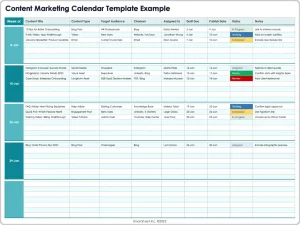 Excel is a practical place to start. It’s familiar, flexible, and easy to adapt—whether you’re planning a month of social posts or coordinating a year of launches. With a free marketing calendar template, you can spend less time building a spreadsheet from scratch and more time deciding what to publish and why.
This guide explains what to look for in a template, how to set one up, and how to use it to keep your marketing work organized.
What Is a Marketing Calendar?
A marketing calendar is a schedule of planned marketing activities. Depending on your needs, it might cover social media posts, email campaigns, blog articles, product launches, events, paid advertising, or all of the above.
A calendar is more than a list of dates. A useful one shows:
- What is happening
- When it will happen
- Where the content will appear
- Who is responsible
- What stage the work is in
- How success will be measured
The calendar might be organized by day, week, month, or campaign. A small business may need only a monthly view, while a larger team may use a year-long overview alongside detailed channel calendars.
Why Use Excel for a Marketing Calendar?
Excel is a good option for teams that want a customizable planning tool without committing to specialized software.
It’s flexible
You can add, remove, or rename columns to fit your workflow. For example, a content team might track keywords and approval status, while an events team might track vendors and registration deadlines.
It’s familiar
Many people already know how to enter data, sort rows, filter lists, and format cells in Excel. Familiarity can make it easier to get a calendar adopted across a team.
It supports different views
A simple spreadsheet can become a monthly calendar, a campaign tracker, or a content backlog. You can also create separate tabs for different channels or time periods.
It can work with common planning tools
Excel workbooks can be saved and shared in formats that are easy to distribute. If your team uses Microsoft 365, Excel files can also be stored and co-edited through OneDrive or SharePoint, subject to your organization’s setup and permissions. Microsoft’s documentation explains how workbook sharing and collaboration work in Microsoft 365.[1]
Excel does have limits: it won’t automatically manage every approval, reminder, or publishing task. If your workflow becomes difficult to maintain in a spreadsheet, a dedicated project-management or marketing platform may be a better fit.
What to Look for in a Free Excel Template
Not every downloadable spreadsheet is designed for actual marketing work. Before choosing one, check whether it includes the elements you need.
A clear time structure
Look for a template that matches your planning horizon:
- Annual: Useful for campaign themes, launches, seasonal moments, and major events
- Quarterly: Useful for campaign coordination and resource planning
- Monthly: Useful for detailed content scheduling
- Weekly or daily: Useful for teams publishing frequently across several channels
A template can include more than one view—for instance, an annual overview and monthly planning tabs.
Fields your team will actually use
A practical calendar might include:
| Field | What it helps you track |
|---|---|
| Date and time | When the activity is scheduled |
| Campaign | The initiative the activity supports |
| Channel | Email, social, website, blog, event, or another channel |
| Content or activity | A brief description of the planned work |
| Audience | The group the message is intended for |
| Owner | The person responsible |
| Status | Draft, in review, approved, scheduled, or published |
| Link or asset | The relevant brief, file, or destination |
| Goal or KPI | The intended outcome |
| Notes | Dependencies, approvals, or other details |
Avoid adding fields simply because they’re available. If no one updates a column, it probably doesn’t belong in the working calendar.
Filters and dropdowns
Filters help you view only the activities relevant to a particular campaign, owner, channel, or status. Dropdown lists can make entries more consistent—for example, by limiting the status field to a set of agreed options.
Readability
A calendar is useful only if people can scan it. Look for clear headings, sensible spacing, frozen header rows, and restrained use of color. Color should reinforce information, not replace it: include a text label for status rather than relying on color alone.
Where to Find Free Marketing Calendar Templates
You can find free Excel templates from productivity and office-software providers, marketing resource sites, and independent creators. Microsoft provides downloadable Excel templates, including calendars, through its template library.[2] Other publishers may offer marketing-specific content calendars or campaign planners.
Before downloading a template:
- Check the file format. Confirm it’s an Excel workbook, such as
.xlsx, if that’s what your team needs. - Review what’s included. Make sure the template supports your planning period and channels.
- Check the source. Prefer reputable providers and avoid files that require unexpected software or sensitive information.
- Test it with sample entries. Confirm that filters, formulas, and formatting work as expected.
- Make a copy. Keep an untouched version in case you need to restore the original layout.
Free templates can be a great starting point, but they’re rarely a perfect match out of the box. Think of them as a framework to adapt, not a substitute for deciding how your team plans and approves work.
How to Set Up a Marketing Calendar in Excel
1. Decide what the calendar is for
Start by defining its main purpose. Are you coordinating social content? Managing an entire campaign? Tracking product announcements and events across departments?
If the calendar tries to serve too many purposes, it can become cluttered. You may want one high-level calendar for key dates and separate working calendars for individual channels or teams.
2. Choose your planning horizon
Set a realistic time frame. A yearly calendar is useful for broad planning, but detailed content is often easier to manage month by month. Many teams use both: a high-level annual plan and a more detailed rolling calendar for the next several weeks.
3. Add the dates that matter
Enter fixed dates first, such as product launches, trade shows, major promotions, email deadlines, and seasonal campaigns. Then add the dates for content creation, review, approvals, and publication.
Plan for the work behind the launch—not just the launch itself. A campaign may need a brief, design, legal review, landing page, and reporting period.
4. Group work by campaign and channel
Use consistent campaign names and channel labels. This makes it easier to filter the calendar and understand how individual pieces of content support a broader initiative.
For example, a campaign might include:
- A blog article
- Several social posts
- An email announcement
- A landing page
- A webinar or in-person event
5. Assign an owner and status
Every calendar item should have a responsible person and a clear status. Keep status labels simple and consistent, such as:
- Planned
- In progress
- In review
- Approved
- Scheduled
- Published
- Canceled
This helps people distinguish between an idea and a confirmed commitment.
6. Add goals and measurement
Connect planned activities to a purpose. A goal might be awareness, traffic, registrations, leads, sales, or customer retention. Where appropriate, add a metric that will help the team assess performance.
The metric should fit the activity. For example, an event invitation might be assessed by registrations, while a website article might be assessed by relevant traffic and engagement. Avoid treating every activity as if it has the same success measure.
7. Establish an update routine
Decide who maintains the calendar and how often the team reviews it. A short weekly check-in can reveal overdue approvals, overlapping campaigns, or missing assets. A monthly review can help the team adjust upcoming plans based on results and capacity.
Excel Features That Make Planning Easier
You don’t need advanced spreadsheet skills to improve a marketing calendar. A few basic features can make it easier to maintain.
Use filters
Turn your data range into an Excel table, then filter by owner, channel, campaign, or status. Microsoft’s guidance on Excel tables explains how they can help organize and work with related data.[3]
Apply data validation
Data validation can create dropdown menus for fields such as channel, status, and owner. This reduces spelling variations and makes filtered views more reliable. Microsoft documents data validation and dropdown lists in Excel’s support materials.[4]
Use conditional formatting carefully
Conditional formatting can highlight overdue items or show statuses at a glance. For example, you might highlight past-due items that are not marked “Published” or “Canceled.” Keep the rules simple, and make sure the meaning is clear to everyone using the workbook.
Freeze the header row
If the calendar contains many entries, freezing the top row keeps column headings visible while scrolling. This small adjustment can make a large worksheet much easier to navigate.
Keep dates consistent
Use actual Excel date values rather than typing dates as free-form text. Consistent dates make sorting and filtering more dependable. If multiple people are editing the workbook, agree on one date format.
Common Marketing Calendar Mistakes to Avoid
Planning every detail too far in advance
A yearly plan can set direction, but detailed schedules may need to change as priorities, results, and resources shift. Leave room for updates and review the near-term plan regularly.
Treating the calendar as a task list
A marketing calendar should show timing and coordination. It doesn’t necessarily need to hold every production task, comment, or approval conversation. Link to a project brief or task system when the work requires more detail.
Scheduling without checking capacity
A packed calendar may look productive but can overwhelm the people responsible for creating and approving the work. Check team capacity before committing to dates.
Leaving ownership unclear
If no one owns an item, it’s easy for it to stall. Assign one primary owner, even when several people contribute.
Focusing on publication dates alone
A publication date is only one milestone. Include the preparation and review deadlines needed to make that date achievable.
Using colors without a legend
Color can make a spreadsheet easier to scan, but unexplained colors can confuse people—and may be difficult for some users to distinguish. Pair color with labels and provide a simple legend.
A Simple Marketing Calendar Workflow
A straightforward process can help keep the calendar useful:
- Set priorities: Agree on business goals and campaign themes.
- Add fixed dates: Enter launches, events, and key deadlines.
- Plan channel activities: Map out the content and communications that support each campaign.
- Assign owners: Name the person responsible for each item.
- Review feasibility: Check timing, dependencies, and team capacity.
- Update status: Keep progress current as work moves through production.
- Review results: Use performance insights to inform future planning.
The calendar should support decision-making, not become a document people update only because they’re told to. Keep it accessible, make ownership clear, and remove fields that don’t help the team.
Conclusion
A free marketing calendar template in Excel can give your team a practical starting point for organizing campaigns, content, and important dates. Choose a layout that fits your planning horizon, include only the fields you’ll maintain, and use Excel features such as filters and dropdowns to keep information consistent.
Most importantly, treat the calendar as a living plan. Review it regularly, connect activities to clear goals, and leave room to adapt when priorities change. A well-maintained spreadsheet won’t replace good marketing judgment—but it can make that judgment easier to coordinate and act on.
Sources
- Microsoft Support, “Collaborate on Excel workbooks at the same time with co-authoring.”
- Microsoft Create, “Excel templates.”
- Microsoft Support, “Overview of Excel tables.”
- Microsoft Support, “Create a drop-down list.)”