Simple Family Budget Template Excel
Simple Family Budget Template in Excel
Managing your family’s finances can feel overwhelming. A well-structured budget helps you track income and expenses, identify areas where you can save, and ultimately achieve your financial goals. Excel is a powerful tool for creating a simple, yet effective, family budget template. This guide will walk you through building your own budget in Excel, step-by-step.
Why Use Excel for Budgeting?
- Customization: Excel allows you to tailor your budget to your specific needs and preferences. You’re not limited by pre-defined categories or features.
- Flexibility: You can easily add, remove, or modify categories as your financial situation changes.
- Automation: Formulas and functions can automate calculations, saving you time and reducing errors.
- Visualization: Charts and graphs can provide a visual representation of your spending habits, making it easier to identify trends and areas for improvement.
- Accessibility: Excel is widely available and relatively easy to use, even for beginners.
Creating Your Excel Budget Template
- Open Excel and Create a New Workbook: Start with a blank workbook.
- Set Up Column Headers: In the first row, create the following column headers. Consider starting in cell A1.
- Date: For tracking the date of each transaction.
- Description: A brief description of the transaction (e.g., “Grocery shopping at Kroger”).
- Category: Categorize your spending (e.g., “Groceries,” “Transportation,” “Entertainment”).
- Planned/Budgeted: The amount you plan to spend in each category.
- Actual: The actual amount spent.
- Difference: The difference between the Planned and Actual amounts (Actual – Planned).
- Define Your Income Categories: Below the column headers, create a section for income.
- Income: List all sources of income, such as “Salary (Spouse 1),” “Salary (Spouse 2),” “Freelance Income,” “Investment Income,” etc.
- Total Income: Use the `SUM` function to calculate the total income for the month. For example, if your income sources are in cells B2 to B5, the formula in a separate “Total Income” cell would be `=SUM(B2:B5)`. Adjust cell references as needed.
- Define Your Expense Categories: This is the most important part. Carefully consider all your regular expenses. Here’s a list of common categories:
- Housing: Rent or Mortgage, Property Taxes, Homeowner’s Insurance, Maintenance
- Utilities: Electricity, Gas, Water, Internet, Phone, Trash/Recycling
- Transportation: Car Payment, Car Insurance, Gas, Public Transportation, Car Maintenance
- Food: Groceries, Dining Out
- Healthcare: Health Insurance Premiums, Doctor Visits, Prescriptions
- Debt Payments: Credit Card Payments, Student Loans, Personal Loans
- Insurance: Life Insurance, Disability Insurance
- Personal Care: Haircuts, Toiletries
- Entertainment: Movies, Concerts, Hobbies
- Clothing: New Clothes, Dry Cleaning
- Education: Tuition, Books
- Childcare: Daycare, Babysitting
- Savings: Emergency Fund, Retirement Contributions, College Fund
- Gifts: Birthdays, Holidays
- Miscellaneous: Subscriptions, Other Expenses
Be as detailed as you need to be. You can always combine categories later if necessary.
- Enter Planned/Budgeted Amounts: For each expense category, enter the amount you plan to spend in the “Planned/Budgeted” column. This is your estimated budget for the month.
- Track Your Actual Expenses: Throughout the month, record each transaction in the appropriate row, filling in the “Date,” “Description,” “Category,” and “Actual” columns. Be diligent about tracking everything!
- Calculate the Difference: In the “Difference” column, enter a formula to calculate the difference between the “Actual” and “Planned/Budgeted” amounts. The formula should be `=E2-D2` (assuming “Actual” is in column E and “Planned/Budgeted” is in column D and your first expense entry starts in row 2). Copy this formula down to all rows with expense entries. A positive difference indicates you spent more than planned; a negative difference indicates you spent less.
- Calculate Total Expenses: Create a “Total Expenses” section below your expense categories. Use the `SUM` function to calculate the total planned expenses and total actual expenses. For example, if your expense categories are in cells D8 to D25 (Planned) and E8 to E25 (Actual), the formulas would be `=SUM(D8:D25)` and `=SUM(E8:E25)` respectively.
- Calculate Net Income: Calculate your net income (or surplus/deficit) by subtracting your total expenses from your total income. For example, if your total income is in cell B6 and your total actual expenses are in cell E26 (assuming E26 contains the Total Actual Expenses calculated above), the formula would be `=B6-E26`.
- Conditional Formatting (Optional): Use conditional formatting to highlight overspending or underspending. For example:
- Select the “Difference” column.
- Go to “Conditional Formatting” -> “Highlight Cells Rules” -> “Greater Than…”
- Enter `0` (zero) to highlight cells where you overspent. Choose a red fill color.
- Repeat for underspending: “Conditional Formatting” -> “Highlight Cells Rules” -> “Less Than…”
- Enter `0` (zero) to highlight cells where you underspent. Choose a green fill color.
- Create Charts and Graphs (Optional): Visualizing your budget can make it easier to understand your spending habits.
- Pie Chart of Expenses: Select the Category and Actual columns. Go to “Insert” -> “Pie Chart.” This will show you the proportion of your spending in each category.
- Bar Chart of Planned vs. Actual: Select the Category, Planned, and Actual columns. Go to “Insert” -> “Bar Chart.” This will allow you to compare your planned spending to your actual spending for each category.
- Save Your Template: Save your Excel file as “Family Budget Template” or a similar name. You can then reuse this template each month.
Tips for Effective Budgeting
- Be Realistic: Don’t underestimate your expenses. It’s better to overestimate than to underestimate.
- Track Everything: Even small expenses can add up. Use a budgeting app or keep receipts to ensure you’re tracking everything.
- Review Regularly: Review your budget at least once a week to see how you’re doing and make adjustments as needed.
- Be Flexible: Life happens. Don’t be afraid to adjust your budget to accommodate unexpected expenses or changes in income.
- Set Financial Goals: Having clear financial goals will motivate you to stick to your budget.
- Automate Savings: Set up automatic transfers to your savings accounts to ensure you’re saving consistently.
- Involve Your Family: Discuss your budget with your spouse and children (if age-appropriate) to get everyone on board.
Example Excel Structure (Simplified)
| Date | Description | Category | Planned | Actual | Difference |
|---|---|---|---|---|---|
| 03/01/2024 | Mortgage Payment | Housing | 1500 | 1500 | 0 |
| 03/05/2024 | Grocery Shopping | Groceries | 400 | 450 | 50 |
| 03/10/2024 | Gasoline | Transportation | 150 | 175 | 25 |
| Total Income | 5000 | ||||
| Total Planned Expenses | 3500 | ||||
| Total Actual Expenses | 3700 | ||||
| Net Income | 1300 | ||||
This example is a highly simplified version. Your actual spreadsheet will contain significantly more detail.
Conclusion
Creating a simple family budget template in Excel can be a powerful step towards taking control of your finances. By carefully tracking your income and expenses, identifying areas for improvement, and setting financial goals, you can achieve financial stability and work towards a brighter future. Remember to be consistent, patient, and adaptable, and your budget will become a valuable tool for managing your family’s finances effectively. Don’t be afraid to experiment and refine your template until it meets your specific needs. Good luck!
 1365×700 family budget template excel from www.someka.net
  960×1071 family budget spreadsheet excel family budget from db-excel.com
  1140×1140 excel budget template family budget spreadsheet monthly etsy from www.etsy.com
  680×1024 family budget templates excelxocom from excelxo.com
  600×600 sample budget templates excel from www.sampletemplates.com
  758×1024 family budget spreadsheet budget spreadsheet spreadsheet templates from db-excel.com
  1275×1650 sample family budget spreadsheet db excelcom from db-excel.com
  600×842 excel monthly budget excel templates from www.exceltemplate123.us
  1332×846 family budget spreadsheet excel etsy from www.etsy.com
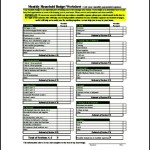
  680×871 family budget template concept from thebrownfaminaz.blogspot.com


Simple Family Budget Template Excel :
Simple Family Budget Template Excel was posted in June 2, 2025 at 10:26 am. If you wanna have it as yours, please click the Pictures and you will go to click right mouse then Save Image As and Click Save and download the Simple Family Budget Template Excel Picture.. Don’t forget to share this picture with others via Facebook, Twitter, Pinterest or other social medias! we do hope you'll get inspired by SampleTemplates123... Thanks again! If you have any DMCA issues on this post, please contact us!
Related For Simple Family Budget Template Excel

Sample College Budget Worksheet
Sample College Budget Worksheet Wedding Event Dj Itinerary Worksheet
Income and Expenditure Budget Templ
Income and Expenditure Budget Template PDF Simple Self Declaration