ClickUp Daily Agenda Planner
Mastering Your Day: The ClickUp Daily Agenda Planner
In today’s fast-paced world, effective time management is crucial for both personal and professional success. Feeling overwhelmed by a seemingly endless to-do list is a common struggle. Fortunately, ClickUp, a versatile project management platform, offers a powerful daily agenda planner that can help you regain control of your time and prioritize your tasks effectively.
What is the ClickUp Daily Agenda Planner?
The ClickUp Daily Agenda Planner is a feature within the ClickUp platform designed to help you organize and manage your tasks on a daily basis. It provides a central location to view all your scheduled activities, prioritize them based on urgency and importance, and track your progress throughout the day. Think of it as your personalized daily command center for productivity.
Key Features and Benefits:
- Unified Task View: The agenda planner aggregates tasks from across all your ClickUp spaces, lists, and projects into a single, chronological view. This eliminates the need to jump between different areas of the platform to see what’s on your plate for the day.
- Customizable Filtering and Sorting: Tailor your agenda view to focus on the most relevant tasks. Filter by status (e.g., “To Do,” “In Progress,” “Done”), priority, due date, assignee, and more. Sort tasks by due date, priority, or custom fields to ensure you’re working on the most critical items first.
- Drag-and-Drop Prioritization: Easily rearrange tasks within the agenda using drag-and-drop functionality. This allows you to quickly adjust your priorities as new information or urgent requests arise.
- Time Blocking and Scheduling: Allocate specific time slots to your tasks within the agenda. This helps you visualize how your day will be spent and ensure you have enough time to complete your most important work. Integrate with your Google Calendar or Outlook Calendar for seamless synchronization of events and tasks.
- Progress Tracking: Monitor your progress throughout the day by marking tasks as complete directly within the agenda. The planner visually displays your completed tasks, providing a sense of accomplishment and motivating you to keep moving forward.
- Customizable Views: Choose from different agenda views to suit your preferences and needs. Options include a daily view, a weekly view, and a monthly view. You can also create custom views based on specific criteria.
- Recurring Tasks: Automatically schedule recurring tasks, such as daily stand-up meetings or weekly report submissions, to appear in your agenda without manual entry.
- Reminders and Notifications: Set reminders for upcoming tasks and deadlines to ensure you never miss an important commitment. Receive notifications via email, desktop alerts, or mobile push notifications.
- Integration with Other ClickUp Features: The agenda planner seamlessly integrates with other ClickUp features, such as task dependencies, subtasks, and checklists. This allows you to break down complex tasks into smaller, more manageable steps and track your progress at a granular level.
- Collaboration: Share your agenda with team members to coordinate schedules and ensure everyone is on the same page. Assign tasks to others directly from the agenda.
How to Use the ClickUp Daily Agenda Planner: A Step-by-Step Guide
- Set Up Your ClickUp Workspace: If you haven’t already, create a ClickUp workspace and organize your projects into spaces, lists, and tasks.
- Access the Agenda Planner: Navigate to the “Calendar” section of your ClickUp workspace. The daily agenda view is usually the default view.
- Add Tasks to Your Agenda: Ensure all your tasks have due dates assigned. ClickUp will automatically populate your agenda with tasks that are due on the selected date. You can also drag and drop tasks directly from your lists onto the agenda.
- Prioritize Your Tasks: Review your tasks and prioritize them based on urgency and importance. Use the drag-and-drop functionality to rearrange tasks within the agenda. Consider using the Eisenhower Matrix (urgent/important) to help you prioritize effectively.
- Schedule Your Time: Allocate specific time slots to your tasks within the agenda. Consider using time blocking techniques to dedicate focused time to specific tasks. Be realistic about how long each task will take and schedule buffer time for unexpected interruptions.
- Track Your Progress: Throughout the day, mark tasks as complete as you finish them. Monitor your progress and adjust your schedule as needed.
- Use Reminders and Notifications: Set reminders for upcoming tasks and deadlines to ensure you stay on track. Customize your notification settings to receive alerts via your preferred channels.
- Review and Adjust: At the end of each day, review your agenda to assess your productivity and identify areas for improvement. Adjust your schedule and prioritization strategies as needed.
Tips for Maximizing Your Productivity with the ClickUp Daily Agenda Planner:
- Start with a Clear Goal: Before you start planning your day, identify your most important goal for the day. Focus your energy on achieving this goal first.
- Prioritize Ruthlessly: Not all tasks are created equal. Identify the tasks that will have the biggest impact on your goals and prioritize those tasks accordingly.
- Break Down Large Tasks: Large, complex tasks can feel overwhelming. Break them down into smaller, more manageable subtasks.
- Batch Similar Tasks: Group similar tasks together to minimize context switching and increase efficiency. For example, schedule all your phone calls for the same block of time.
- Take Regular Breaks: Don’t try to work for hours on end without taking breaks. Regular breaks can help you stay refreshed and focused.
- Eliminate Distractions: Minimize distractions as much as possible. Turn off notifications, close unnecessary browser tabs, and find a quiet place to work.
- Learn Keyboard Shortcuts: ClickUp offers a wide range of keyboard shortcuts that can help you navigate the platform more quickly and efficiently.
- Customize Your Workspace: Tailor your ClickUp workspace to your specific needs and preferences. Use custom fields, views, and automations to streamline your workflow.
- Integrate with Other Tools: Connect ClickUp with other tools you use regularly, such as your email client, calendar, and communication platform.
- Continuously Improve: Experiment with different planning and productivity techniques to find what works best for you. Regularly review your processes and make adjustments as needed.
Conclusion:
The ClickUp Daily Agenda Planner is a powerful tool for boosting productivity and regaining control of your time. By leveraging its features and following the tips outlined above, you can effectively prioritize your tasks, schedule your time, track your progress, and achieve your goals. Embrace the power of the ClickUp Daily Agenda Planner and unlock your full potential.


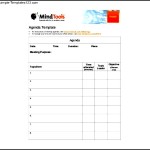
ClickUp Daily Agenda Planner :
ClickUp Daily Agenda Planner was posted in October 25, 2025 at 7:08 pm. If you wanna have it as yours, please click the Pictures and you will go to click right mouse then Save Image As and Click Save and download the ClickUp Daily Agenda Planner Picture.. Don’t forget to share this picture with others via Facebook, Twitter, Pinterest or other social medias! we do hope you'll get inspired by SampleTemplates123... Thanks again! If you have any DMCA issues on this post, please contact us!
Related For ClickUp Daily Agenda Planner
Personal Milestone Agenda
“`html My Personal Milestone Agenda: A Roadmap to Growth
Check-in Agenda Template
Check-in Agenda Template: A Guide to Effective Meetings Check-in