Childcare Budget Worksheet Excel
Childcare Budget Worksheet in Excel: A Comprehensive Guide
Childcare expenses can significantly impact a family’s budget. Creating a dedicated childcare budget worksheet in Excel can help you understand, track, and manage these costs effectively. This guide walks you through creating a comprehensive childcare budget worksheet, providing practical tips and examples to optimize your financial planning.
Why Use an Excel Worksheet for Childcare Budgeting?
Excel provides a flexible and customizable platform for managing your childcare budget. Here are some key advantages: * **Detailed Tracking:** Excel allows you to track various childcare-related expenses, from daycare fees to transportation costs, in one place. * **Customization:** You can tailor the worksheet to your specific needs by adding or modifying categories, formulas, and calculations. * **Visualization:** Excel offers charting tools to visualize your spending patterns and identify areas for potential cost savings. * **Forecasting:** You can project future childcare costs based on current expenses and anticipated changes. * **Data Analysis:** Excel enables you to analyze your spending data and gain insights into your childcare budget. * **Accessibility:** Excel files can be easily shared and accessed across different devices, making it convenient for collaboration with your partner or financial advisor.
Creating Your Childcare Budget Worksheet in Excel: A Step-by-Step Guide
Follow these steps to create a comprehensive childcare budget worksheet in Excel:
1. Setting Up the Worksheet
* **Open Excel:** Launch Microsoft Excel and create a new workbook. * **Rename the Sheet:** Rename the default sheet to “Childcare Budget” for easy reference. * **Define Column Headers:** Set up column headers for different categories of data. Suggested columns include: * **Date:** Date of the expense. * **Description:** Detailed description of the expense (e.g., “Daycare Fee,” “Babysitter,” “Diapers”). * **Category:** Broad category of the expense (e.g., “Daycare,” “Supplies,” “Transportation”). * **Subcategory:** More specific category within the main category (e.g., under “Daycare,” you might have “Full-time,” “Part-time”). * **Provider:** Name of the childcare provider (e.g., “Sunshine Daycare,” “Jane Doe Babysitting”). * **Amount:** Amount spent on the expense. * **Payment Method:** How the expense was paid (e.g., “Cash,” “Credit Card,” “Check”). * **Notes:** Any additional notes or comments about the expense.
2. Defining Childcare Expense Categories
Identify and list all potential childcare expenses. Here are some common categories and subcategories: * **Daycare/Preschool:** * Full-time * Part-time * Before/After School Care * Summer Camp * **Babysitting:** * Regular Babysitter * Occasional Babysitter * Date Night Babysitter * **Supplies:** * Diapers * Wipes * Formula/Food * Clothing * Toys/Books * **Transportation:** * Gas * Public Transportation * Car Maintenance (related to childcare transport) * **Activities:** * Classes (e.g., Music, Sports) * Playdates * Field Trips * **Healthcare:** * Doctor Visits * Medications * **Other:** * Registration Fees * Late Fees * Gifts for Caregivers
3. Entering Expense Data
Start entering your childcare expenses into the worksheet. Be as detailed as possible. For example: | Date | Description | Category | Subcategory | Provider | Amount | Payment Method | Notes | | ———- | ——————— | ———- | ———– | —————— | —— | ————— | ————————————- | | 2024-01-05 | Daycare Fee | Daycare | Full-time | Sunshine Daycare | 1200 | Check | Monthly fee | | 2024-01-10 | Diapers | Supplies | Diapers | Target | 40 | Credit Card | Brand X | | 2024-01-15 | Babysitter | Babysitting | Regular | Jane Doe | 50 | Cash | 5 hours | | 2024-01-20 | Gas for Daycare Run | Transportation| Gas | Gas Station ABC | 25 | Credit Card | Weekly gas fill-up |
4. Using Formulas for Calculations
Excel’s formulas are essential for automating calculations and gaining insights into your spending. * **Calculating Totals:** Use the `SUM` function to calculate the total expenses for each category, subcategory, or period. For example, to calculate the total daycare expenses for the month, use the following formula in a separate cell: `=SUMIF(C:C,”Daycare”,F:F)` This formula sums all the amounts (column F) where the category (column C) is “Daycare.” * **Calculating Monthly/Annual Totals:** Create separate sections for monthly and annual summaries. Use the `SUMIF` function to calculate the total expenses for each month and the `SUM` function to calculate the annual totals. * **Calculating Averages:** Use the `AVERAGE` function to calculate the average monthly or weekly spending on specific categories.
5. Creating Charts and Graphs
Visualizing your data can help you identify spending patterns and trends. Excel offers various charting options. * **Pie Chart:** Use a pie chart to visualize the proportion of your childcare expenses allocated to different categories (e.g., Daycare, Supplies, Transportation). * **Column Chart:** Use a column chart to compare monthly expenses across different categories. * **Line Chart:** Use a line chart to track trends in your spending over time. To create a chart: 1. Select the data you want to chart (e.g., category names and total amounts). 2. Go to the “Insert” tab and choose the desired chart type. 3. Customize the chart by adding titles, labels, and legends.
6. Budgeting and Forecasting
* **Create a Budget Column:** Add a column for your budgeted amount for each expense category. * **Calculate Variance:** Add a column to calculate the difference between your actual spending and your budgeted amount. Use the following formula: `=Actual Spending – Budgeted Amount` A positive variance indicates overspending, while a negative variance indicates underspending. * **Forecasting Future Expenses:** Based on your historical data and anticipated changes (e.g., increased daycare fees, child moving to a different program), project your future childcare expenses. You can use formulas to increase certain categories by a specific percentage.
7. Conditional Formatting
Use conditional formatting to highlight areas of concern or to quickly identify spending patterns. For example: * Highlight expenses exceeding a certain amount. * Highlight categories where you are over budget. * Color-code expenses based on their payment method. To apply conditional formatting: 1. Select the cells you want to format. 2. Go to the “Home” tab and click on “Conditional Formatting.” 3. Choose a formatting rule, such as “Highlight Cells Rules” or “Top/Bottom Rules.”
8. Protecting Your Worksheet
If you are sharing your worksheet or want to prevent accidental changes, consider protecting it with a password. 1. Go to the “Review” tab and click on “Protect Sheet” or “Protect Workbook.” 2. Enter a password and select the elements you want to protect (e.g., formulas, cell formatting).
Tips for Effective Childcare Budgeting
* **Track Expenses Regularly:** Update your worksheet regularly (e.g., weekly or monthly) to ensure accuracy and identify potential issues early. * **Be Detailed:** The more detailed your expense tracking, the more insights you will gain into your spending patterns. * **Review Your Budget Regularly:** Review your budget at least quarterly to make adjustments based on changes in your circumstances or spending habits. * **Identify Cost-Saving Opportunities:** Look for ways to reduce your childcare expenses, such as exploring alternative childcare options, negotiating rates, or taking advantage of tax credits. * **Consider Tax Implications:** Be aware of any tax credits or deductions available for childcare expenses. Consult with a tax professional for personalized advice. * **Involve Your Partner:** If you have a partner, involve them in the budgeting process to ensure everyone is on the same page.
Example Childcare Budget Worksheet Template
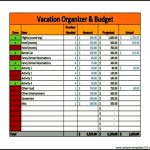
Here’s a simplified example of a childcare budget worksheet structure: | Month | Daycare | Babysitting | Supplies | Transportation | Activities | Total Expenses | Budgeted Amount | Variance | | ——— | ——- | ———– | ——– | ————– | ———- | ————– | ————— | ——– | | January | $1200 | $50 | $100 | $50 | $25 | $1425 | $1500 | -$75 | | February | $1200 | $75 | $80 | $40 | $30 | $1425 | $1500 | -$75 | | March | $1200 | $60 | $90 | $45 | $20 | $1415 | $1500 | -$85 | | **Totals** | **$3600** | **$185** | **$270** | **$135** | **$75** | **$4265** | **$4500** | **-$235** | This template provides a basic framework. You can add more detailed categories and subcategories to suit your specific needs.
Conclusion
Creating a childcare budget worksheet in Excel is a valuable tool for managing your finances and gaining control over your childcare expenses. By following the steps outlined in this guide, you can develop a customized worksheet that helps you track your spending, identify cost-saving opportunities, and plan for the future. Remember to update your worksheet regularly, review your budget frequently, and adapt it to your changing needs. With careful planning and consistent tracking, you can effectively manage your childcare budget and achieve your financial goals.
 585×600 excel budget template excel documents from www.template.net
  1280×774 daycare excel spreadsheet budget worksheet business plan from db-excel.com
  1275×1650 images budget worksheet baby shower budget worksheet from www.worksheeto.com
  2214×1714 baby budget spreadsheet excel db excelcom from db-excel.com
  768×994 child expenses spreadsheet family child care budget from db-excel.com
  1499×1848 daycare accounting spreadsheet child care budget template from db-excel.com
  768×994 daycare expense spreadsheet pertaining start business budget from db-excel.com
  750×970 daycare expense spreadsheet template child care budget template from db-excel.com
  601×979 daycare expense spreadsheet google spreadshee daycare expense from db-excel.com
  390×510 day care budget templates from www.template.net
  390×475 child care budget template collection from lesboucans.com

Childcare Budget Worksheet Excel :
Childcare Budget Worksheet Excel was posted in January 20, 2026 at 8:45 pm. If you wanna have it as yours, please click the Pictures and you will go to click right mouse then Save Image As and Click Save and download the Childcare Budget Worksheet Excel Picture.. Don’t forget to share this picture with others via Facebook, Twitter, Pinterest or other social medias! we do hope you'll get inspired by SampleTemplates123... Thanks again! If you have any DMCA issues on this post, please contact us!
Related For Childcare Budget Worksheet Excel

Example Maintenance Capital Expendi
Example Maintenance Capital Expenditures PDF Format Generic Service Invoice
Yearly Business Budget Template Exc
Yearly Business Budget Template Excel Sample free download 2010
Simple Budget Planner
Simple Budget Planner College Letter of Intent TemplateWorkout Plan